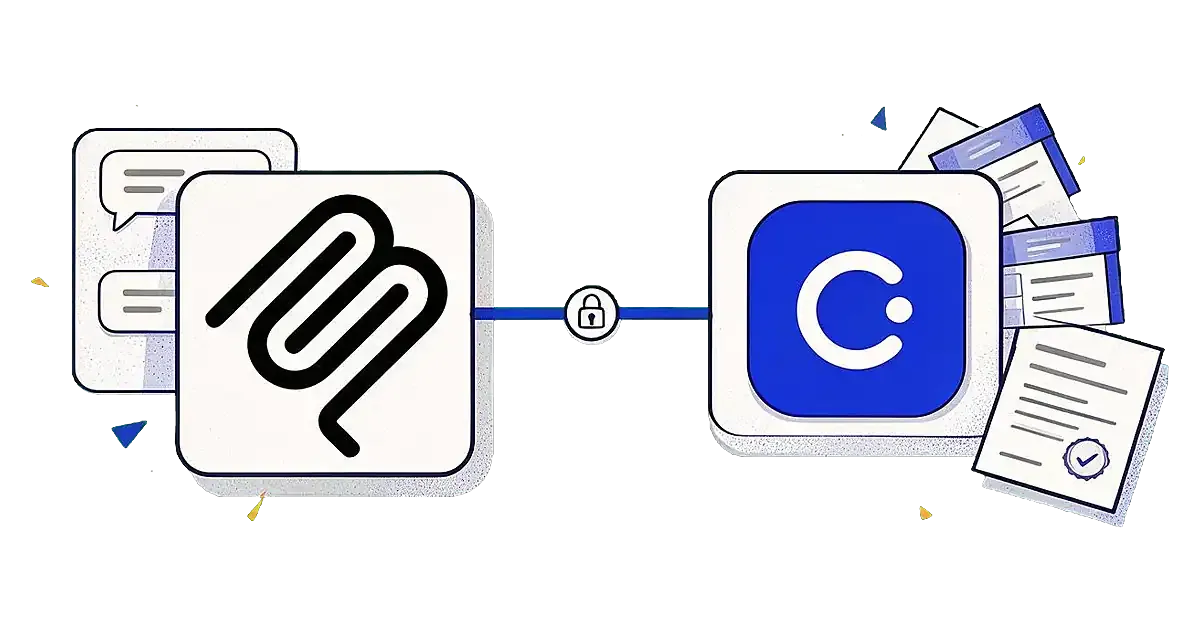
MCP, the Model Context Protocol, lets an AI assistant such as Claude, ChatGPT or Cursor call tools on another system with your sign-in. For requirements management, that means the assistant reads and edits the real requirements, links and documents instead of a copy pasted into a chat. Below: how the protocol works, what to hand over, sample prompts, and how to keep every change under review.
The examples use Flowifex, which runs an MCP server for its use cases, requirements and BRD. Setup steps for each assistant are on the connect your AI assistant page. This article is about the way of working.
What is MCP?
The Model Context Protocol specification (version 2026-07-28) defines MCP as "an open protocol that enables seamless integration between LLM applications and external data sources and tools." It names three roles. Hosts are the AI applications, clients are the connectors inside them, and servers provide context and capabilities.
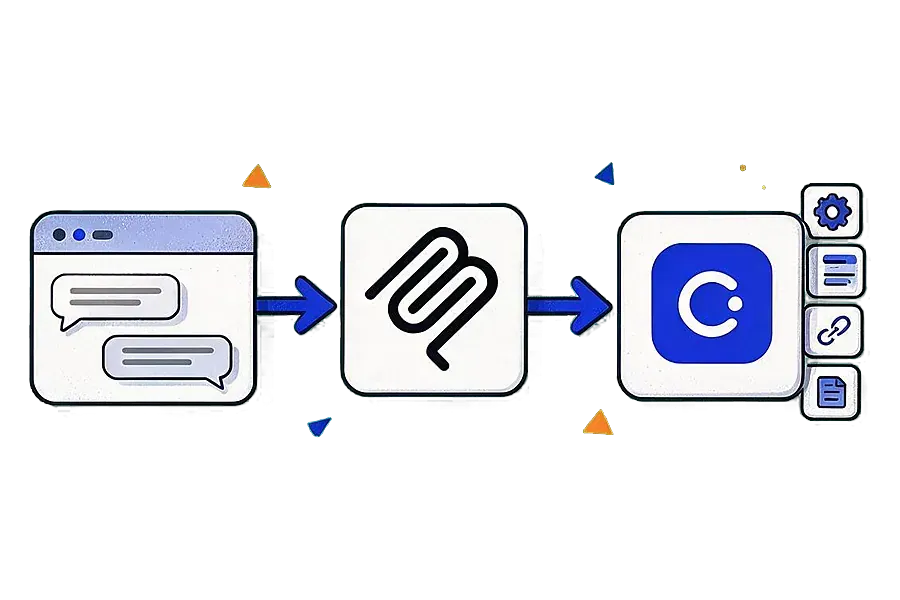
A server can offer resources, prompts and tools. Tools matter most for requirements work, because they are actions the model can call: list requirements, create one, link it to a step. The spec’s tools section calls them model-controlled. It also says there should always be a human in the loop with the ability to deny tool invocations.
What changes when requirements sit behind an MCP server?
Without MCP, an assistant only sees what you paste. It drafts requirements in the chat, you copy them back, and the source of truth and the chat drift apart. With MCP, the assistant works on the project itself:
- It reads the current state. The requirement list, the use case steps and the traceability links come from the live project, not from an export.
- Its writes land in the model. A new requirement gets an ID, a type and a priority like one created by hand.
- It works with your permissions. It cannot see projects you cannot see, or edit where your role only reads.
- Its changes leave a trail. In Flowifex, they appear in the project’s audit log next to everyone else’s.
How do sign-in and permissions work?
For servers reached over HTTP, the spec’s authorization section builds on OAuth 2.1. MCP servers must publish OAuth 2.0 Protected Resource Metadata (RFC 9728), so a client can find where to sign in. In practice, the assistant opens a browser window, you sign in to the tool and approve, and the assistant receives a token for that server only.
Flowifex follows this pattern. The assistant signs in through your Flowifex account, with no API keys. It then has your own role in each project: Owner, Editor, Commenter or Viewer. Writes are refused when your role does not allow them, or when the project is locked. The connection is available on every plan, including Free; see Flowifex pricing for the plans.
What can an assistant do in a requirements tool over MCP?
That depends on the tools the server exposes. The Flowifex server at https://mcp.flowifex.com/mcp has 27 tools. They cover projects, stakeholders, actors, use cases and folders, and the basic, alternate and exception flows with their business rules. They also cover requirements, traceability links and the matrix, the glossary, comments, diagrams, mockups, screen flows, snapshots, the BRD, search and the audit log.
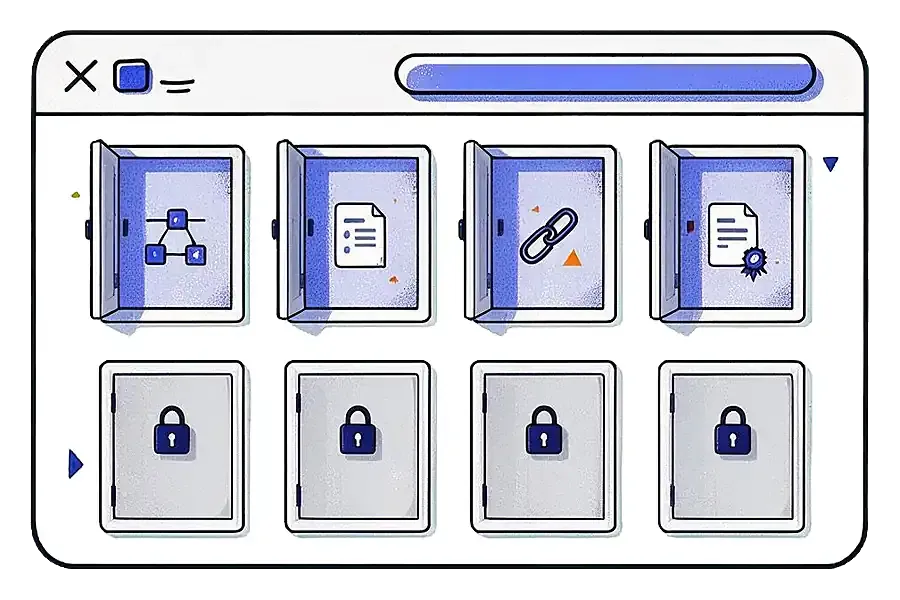
Some actions are left out on purpose. Billing and plans, members and invitations, deleting a project, restoring a snapshot, edit locks, and exporting diagrams as images stay in the app. A delete of any other item is refused unless the assistant sends an explicit confirmation flag with the call.
Which requirements tasks suit an assistant?
Tasks with a clear input and a result you can check suit an assistant best. These prompts work against a Flowifex project; adapt the wording to your own.
- Draft from notes. "Read these workshop notes and create Draft requirements for the split-bill feature, each with a MoSCoW priority and acceptance criteria."
- Find coverage gaps. "Read the traceability matrix and list the requirements with no linked step." The matrix tool returns totals and a covered flag for each requirement.
- Link requirements to steps. "Link each payment requirement to the basic flow step of UC-07 that delivers it, and show me the list before you create the links."
- Import a spreadsheet. "Import this CSV of requirements into the project." The requirements tool accepts CSV text with Title, Description, Type, Priority and Status columns, plus optional Source and AcceptanceCriteria.
- Check wording. "Compare the glossary with the use case steps and list terms used with two meanings."
- Produce the document. "Generate the BRD and export it to Word." The BRD tool can generate, share and export DOCX or PDF.
Coverage questions are where this helps most, because the answer comes from the live links. Our traceability matrix page shows what the matrix holds.
How do you keep a human in the loop?
The protocol leaves review to the people using it. Build it into the way you work:
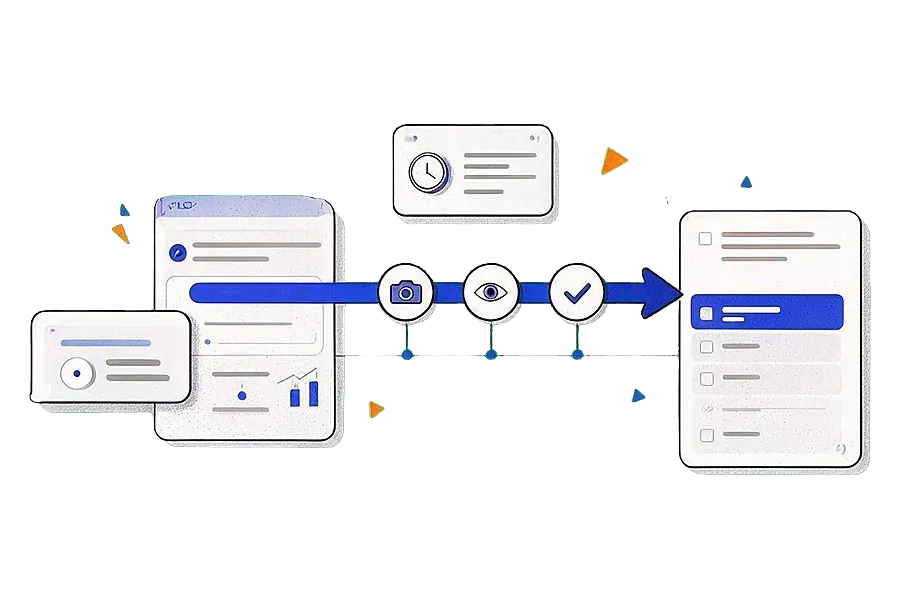
- Take a snapshot first. The assistant can create a snapshot before a large change. Restoring one stays in the app, with a person.
- Keep new items in Draft. Ask the assistant to create requirements with status Draft, and approve them yourself.
- Ask for a plan before writes. The spec asks clients to show tool inputs before calling the server. Read them before you allow a batch.
- Review the audit log. Check what changed after the session, the same way you would review a colleague’s edits.
- Use roles for reviewers. A Commenter or Viewer can connect an assistant to read and summarize without being able to change requirements.
Treat the assistant like a junior analyst: good at first drafts and checks, never the final approver of a requirement.
What are the limits?
An assistant over MCP is only as good as the tools and data behind it. In Flowifex it cannot manage billing or members, delete a project, restore a snapshot or export diagram images. Flowifex has no integrations with issue trackers, so the assistant cannot push requirements into another system for you. The generated BRD contains text and tables, not diagrams.
Each assistant also has its own settings and plan rules for connectors, which can change. Check the client’s own documentation if a step differs from the guides on the connect your AI assistant page.
How do you connect an assistant to Flowifex?
Add the server URL https://mcp.flowifex.com/mcp to your client, then sign in with your Flowifex account and click Allow. Claude Code, Claude on the web or desktop, ChatGPT in developer mode and Cursor each have a short guide on the connect page. Any other client that supports remote MCP servers with OAuth sign-in uses the same URL. For a first prompt, ask it to list your Flowifex projects and the use cases in the first one.
To see what a well-linked project looks like before you hand it to an assistant, read our guide to the requirements traceability matrix.
Frequently asked questions
It is a service that exposes a requirements tool’s data and actions as MCP tools, so an AI assistant can read and change requirements, links and documents. Flowifex runs one at https://mcp.flowifex.com/mcp with 27 tools.
In Flowifex, only if your role allows deletes, and only when the assistant sends an explicit confirmation flag with the call. The server refuses a delete without it. Deleting a project and restoring a snapshot are not available through MCP.
No. The assistant opens a browser sign-in to your Flowifex account the first time it connects. There are no API keys to create or rotate, and the connection is available on every plan, including Free.
No. MCP is a protocol, not a place to store requirements. It connects an assistant to a tool that does store them, with its own model, permissions and history.
Read next
Keep every spec in one place. Start with a free project.
Model use cases, link requirements and generate your BRD. Free plan, no card needed.