Flowifex is a requirements management and use case modeling tool for business analysts. The remote MCP server lets Claude, ChatGPT, Cursor or any MCP client read and write your use cases, requirements, diagrams and BRD with your permissions. The server is at https://mcp.flowifex.com/mcp.
When you paste a spec into a chat window, the assistant returns a draft and you paste it back. The assistant never sees the real model, so it cannot check a flow against your requirements or your glossary. A connected assistant works on the project itself.
MCP is the Model Context Protocol, an open standard that lets an AI assistant use tools in another application. You can read the specification at modelcontextprotocol.io.
Create free accountWhat can an AI assistant do in Flowifex?
The assistant can work on most of the model you see in the app. Each item below works on the same project data, so nothing is copied into a second place.
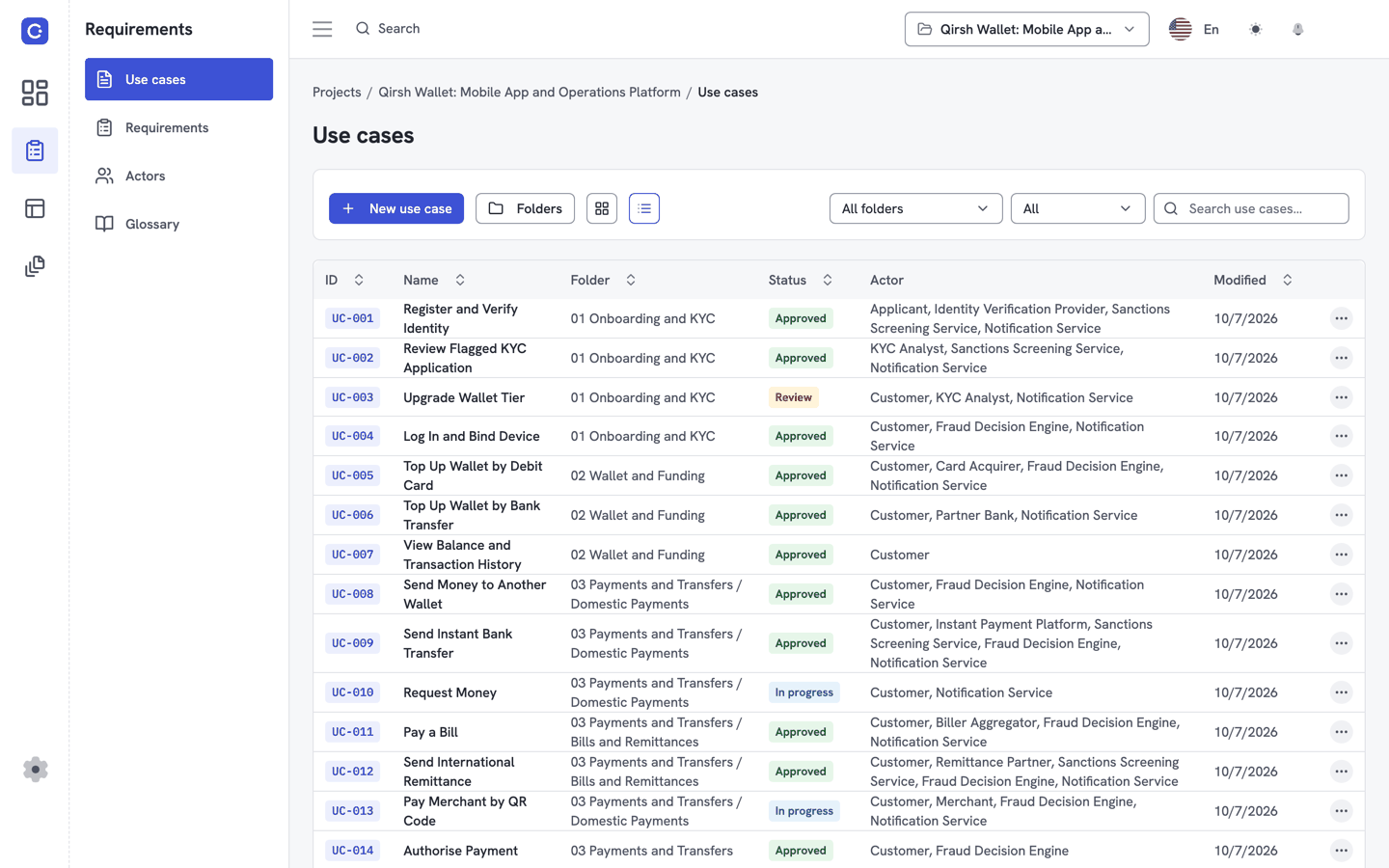
Projects
List the projects you belong to, read their details and create or update a project.
Use cases and flows
Create use cases and folders, add actors and goals, and write basic, alternate and exception flows with business rules.
Requirements and traceability
Create requirements with acceptance criteria, link them to flow steps and read the traceability matrix.
Glossary, comments and stakeholders
Add glossary terms and stakeholders, and read or post comments on use cases and steps.
Diagrams, mockups and screen flows
Read and write the models for use case diagrams, screen mockups and screen flows.
Snapshots
Create a snapshot and read existing ones. Restoring a snapshot stays in the app.
Business requirements document
Generate the BRD, edit it and create a share link. The BRD can also be exported to Word or PDF.
Search and audit log
Search across the project and read the audit log.
What can an AI assistant not do in Flowifex?
Some actions stay in the app on purpose. The assistant cannot do any of these:
Change billing or plans.
Add, remove or invite members.
Delete a project.
Restore a snapshot.
Take or release edit locks.
Export diagrams, mockups or screen flows as images.
The server refuses a delete unless the assistant sends an explicit confirmation flag.
How do I connect my AI assistant to Flowifex?
Every client uses the same server URL and the same sign-in. You sign in with your Flowifex account in the browser. There are no API keys.
Server URL: https://mcp.flowifex.com/mcp
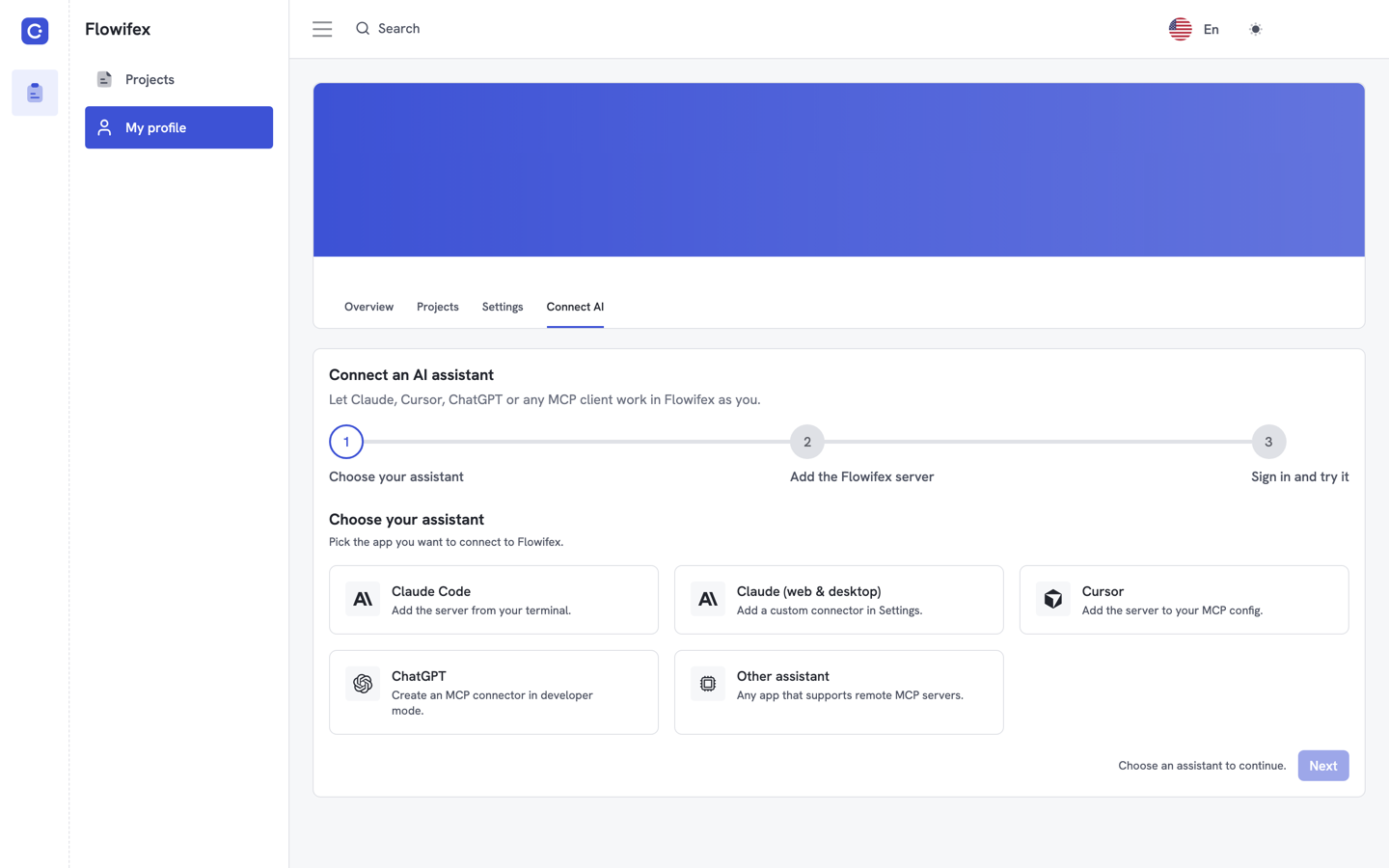
Client steps can change. Check the Anthropic documentation at support.claude.com and the Cursor documentation at docs.cursor.com, and the OpenAI help center for your ChatGPT plan.
| Client | Where you add it | Sign-in step |
|---|---|---|
| Claude Code | Terminal command claude mcp add | Type /mcp, select flowifex, choose Authenticate |
| Claude web or desktop | Settings, then Connectors, then Add custom connector | Click Connect and sign in |
| Cursor | .cursor/mcp.json | Settings, MCP, Login next to flowifex |
| ChatGPT | Settings, then Connectors, with developer mode on | Sign in to Flowifex after pasting the URL |
How to connect Claude Code
Run this command in any terminal.
claude mcp add --transport http flowifex https://mcp.flowifex.com/mcpThen start Claude Code, type /mcp, select flowifex, choose Authenticate and sign in.
How to connect Claude on the web or desktop
- Open Settings, then Connectors.
- Choose Add custom connector.
- Paste the server URL.
- Click Connect and sign in to Flowifex.
How to connect Cursor
Add this to .cursor/mcp.json in your project, or to ~/.cursor/mcp.json for all projects.
{
  "mcpServers": {
    "flowifex": {
      "url": "https://mcp.flowifex.com/mcp"
    }
  }
}
Then open Cursor Settings, go to MCP and click Login next to flowifex.
How to connect ChatGPT
- Open Settings, then Connectors, and turn on developer mode.
- Choose Create and select MCP server.
- Paste the server URL and sign in to Flowifex.
How to connect any other MCP client
Use the server URL in any app that supports remote MCP servers. The assistant opens a browser to sign in the first time it connects.
To test the connection, ask: “List my Flowifex projects and the use cases in the first one.”
Step-by-step setup guides: Claude and Claude Code, ChatGPT and Cursor.
AI for business analysts: what does a connected assistant change?
A connected assistant makes AI requirements gathering work on your real model, not on pasted text. That changes three parts of the job. It does not replace your judgment about what the business needs.
Drafting flows
Describe a use case in plain words and ask for a first draft of the basic flow, with alternate and exception flows. The draft lands in the project, next to your actors and glossary terms. You review and edit it like any other step.
Reviewing requirements for gaps
Ask the assistant to read the requirements and the traceability matrix and list flow steps that no requirement covers. It reads the same links you see in the app, so the answer reflects the current project.
Generating the BRD
Ask for the business requirements document to be generated from the project, then share it by link or export it to Word or PDF. Read the result before you send it. The assistant drafts, and you remain the author.
Is it secure? Permissions and sign-in
The assistant signs in to Flowifex with OAuth. You approve the connection in your browser. No API key is created, so there is no key to leak.

| Role | Can read | Can write |
|---|---|---|
| Owner | Yes | Yes, where the app allows it |
| Editor | Yes | Yes |
| Commenter | Yes | Comments only |
| Viewer | Yes | No |
Access follows the same roles as the app: Owner, Editor, Commenter and Viewer. A Viewer’s assistant can read but not write. Writes are also refused on a locked project.
The connection is available on every plan, including Free. For what each plan includes, see pricing. To learn more about the product, read the about page. For more guides, read the Flowifex blog.
By the Flowifex team. Last updated:
Connect your AI assistant FAQ
Claude, ChatGPT and Cursor work with Flowifex, as does any other client that supports remote MCP servers with OAuth sign-in. Each client uses the same server URL and the same Flowifex sign-in. The steps differ by client, so use the table on this page.
It is a remote server at https://mcp.flowifex.com/mcp that follows the Model Context Protocol. An AI assistant that supports MCP can connect to it, sign in as you and work on your Flowifex projects.
No. You sign in to Flowifex through your browser when the assistant first connects. There are no API keys to create, copy or rotate.
No. The connection is available on every plan, including Free. Pricing stays per project, and the connection does not unlock or lock any feature.
No. It signs in as you and gets the same role you have in each project: Owner, Editor, Commenter or Viewer. Writes are refused when your role does not allow them or when the project is locked.
It can delete items such as a use case or a requirement if your role allows it. The server refuses a delete unless the assistant sends an explicit confirmation flag. It cannot delete a project or restore a snapshot. Those actions stay in the app.
Keep every spec in one place.
Start with a free project.
Model use cases, link requirements and generate
your BRD. Free plan, no card needed.